
WARDING OFF SCAMMERS
There are many ways to get scammed on the web. Identity theft is just one of them. False photos are another.
A friend of mine nearly got scammed by someone advertising a rental unit on CraigsList. It seemed so fishy, she did a Google image search on the photos he posted. The same photos
turned up all over the web– in obviously fraudulent ways. She stopped just short of sending in a $4000 deposit.Here’s how to check out an image in a Google search. First, save it to your computer by right-clicking and choosing “save as.” Then on the web, go to images.google.com. Find the picture you saved. Click and drag it into the search box at Google Images.
Many experts suggest you get identity theft protection from a company like Identity Guard or Norton LifeLock. The American Automobile Association (AAA) also offers it. But lawyers at the National Consumer Law Center say you don’t need to pay for identity theft protection if you’re willing to do it yourself. Here’s how.
Freeze your credit info at the three major companies. Experts say everything else you might do is gravy. At Equifax.com, scroll down till you see the words “freeze or manage.” Next go to
experian.com/freeze/center.html. At TransUnion, go to transunion.com/credit-freeze. I’m going to wait because I have a new credit card application pending.
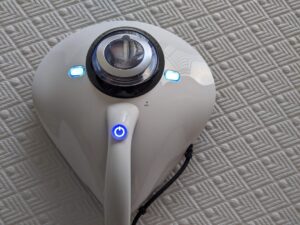 Mattress Gadget
The EPA estimates there are up to 10 million dust mites in a single mattress. Dust mites feed on the skin flakes we shed every day. I decided to do something about it.
I got the “Raycop Lite UV Sanitizing HEPA Allergen Vacuum” for $152 on Amazon. It looks like a small sting ray. Plug it in and glide it over the mattress and you’re done. It has pulsating pads that vibrate 3,300 times a minute. They’re supposedly three times more effective than a regular vacuum. The Raycop’s ultraviolet light claims to remove 99 percent of bacteria and viruses on any fabric surface.
Those with pollen and dust mite allergies give it great reviews on Amazon. I’m not experiencing any allergies, so it’s hard to tell a difference. It was just the yuck factor — thinking about all those mites –that got me going.
Fun with Computer Crafts
 When a child wants cash for their birthday, how can you make it special? I made some Monopoly money with each family member’s photo embedded in the center of each bill.
I started at Monopolyland.com and scrolled down till I saw “free printable money.” Then I chose a template that had blank circles in the center where George Washington might normally go. Since the template was a PDF, which I can’t easily edit, I did a Google search on “convert pdf to jpg,” and chose Adobe’s free online tool. Then I brought the image into my Hallmark greeting card program. I could have used Microsoft Word. But a greeting card program makes it much easier to move images around.
The next problem was how to crop my photos into circles. I Googled it and clicked the first result, crop-circle.imageonline.co. Upload your photo, click it and save it. It comes out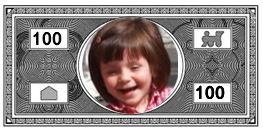 round. Then pop it into a template.
I made bills in denominations from $1 to $500. The results were impressive. I made two of each bill so I could match the back to the front and glue them together using rubber cement, which doesn’t leave wrinkles the way that ordinary glue does. I wish I’d done a 100,000 bill, which has Woodrow Wilson’s face, but was never circulated. It was used by Federal Reserve banks during the Great Depression.
Pinning to the Shelf
The shelf, on a Chromebook, is what we call the taskbar in Windows, a strip at the bottom of your screen. Chromebook has a new item on the shelf called “Tote.” Tote lets you pin files or
images, making them easier to find.
To pin a file or folder, first find it in the “Files” area. Click the launch button in the lower left and then use the up arrow to find “Files.” From there, choose either a file or folder. Pin it by right-
clicking it and choosing “Pin to Shelf.” You can unpin anything by hovering over it on the shelf and clicking the pin icon. You can pin up to 20 items and drag them into emails or wherever.

Photo Courtesy of Ray-Ban
Facebook’s New Smart Glasses
The new “Ray-Ban Stories” smart glasses from Facebook are all over the web. But only at the Verge did I see a key point: Its camera is not as good as a smartphone camera. It’s all about the size of the lens and the sensor. The ultimate in lenses and sensors are found on DSLR cameras.
Having said that, I’m sure smart glasses will catch on, just like smart watches did, at least for some subset of the population. When Google Glasses first came out, they made the mistake of making you apply for a pair, not trusting the market to weed out the non-serious. Since then we’ve also had “Spectacles” by Snap, Inc. The reviewer at Engadget says she likes Facebook glasses’ audio feature. Now she can listen to her music or podcasts and still hear the world around her. The glasses are $299, which sounds high. But how many glasses listen to you when you command them?